WinMend.exe
It is recommended that you verify the SHA-256 checksum below matches the hash shared by the sender before executing this file.
File verification
SHA-256 MATCHED- File
- WinMend.exe
- Version
- 3.6
- Size
- 47.80 MB (50,123,552 bytes)
- Uploaded
- 2026-09-22 16:38 UTC
966f079272291557ce02fc9b10aaff2ec542f2aca626dd5a25845676a81932ab
https://app-repo.onlycyber.net/download/e33e1129-e71f-4420-9839-f12183f8dd01/3.6/get
sha256sum -c
Pictures
2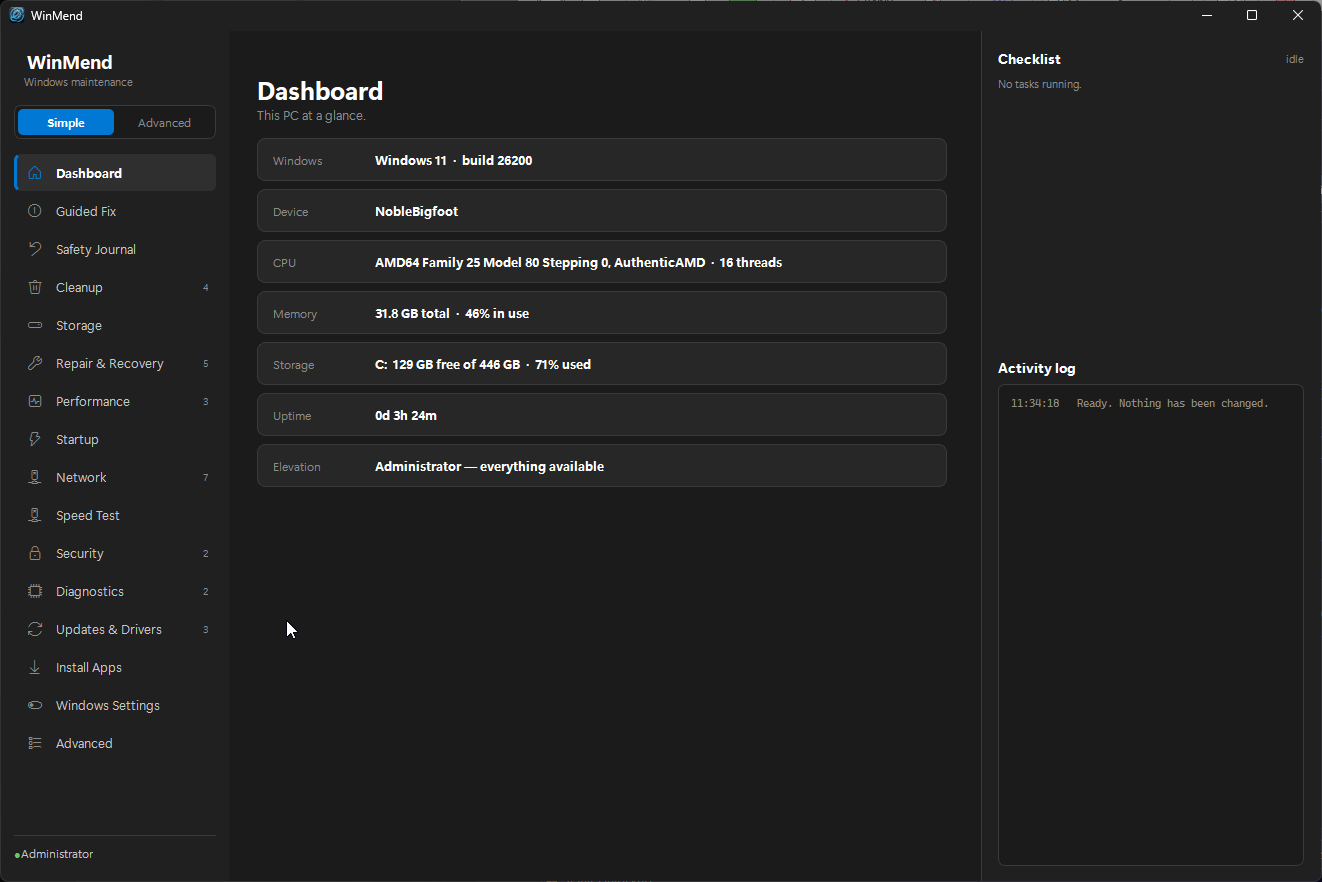
About this app
WinMend 3.6
96 Windows maintenance tools in one app — with a repair assistant that checks its own work, and an undo button that actually works.
What WinMend Is
WinMend is a desktop application for IT professionals, power users, and everyday users who want a single, reliable tool to maintain, repair, and diagnose their Windows machines.
It brings together 97 maintenance tools across 12 categories — one-click junk removal, system file repair, BSOD triage, network stack remediation, a full internet speed test, a startup manager, 27 reversible Windows registry switches, and a 392-application installer — in one native Windows app, without ever opening a command prompt.
Plenty of tools do some of that. Three things separate WinMend from a folder of batch scripts.
It Checks Its Own Work
Guided Fix is the heart of the app. Describe a problem the way you would describe it to a friend — "Wi-Fi connects but websites won't load" — and WinMend runs a set of bounded, read-only checks, explains what it actually found, and builds a conservative repair plan from a library of more than 40 targeted repairs, not a generic scan-and-hope. Every recommendation comes with the reason it was suggested, and you can uncheck anything you would rather it left alone before it starts.
The important part comes after. Once the repairs finish, WinMend repeats the original checks and reports whether the measured condition was resolved, improved, unchanged, or still needs attention. It never treats a task that finished as proof that a problem was fixed, and when it cannot confirm an improvement, it says so plainly.
The findings are real numbers read off your machine, not guesses derived from the words you typed. That principle runs through the whole app: the Startup Manager shows the boot delay Windows itself measured for an app, and prints "Not measured" rather than inventing a rating when there is no data to show.
When there's a plausible before-and-after, Guided Fix adds a Change Timeline: it lines up what changed on the machine — updates, driver installs, new programs — against symptoms it can date, like stop codes, WHEA errors, GPU resets, failed updates, or a drop in Windows' own reliability score. It only names a suspect when the evidence supports one: a change made after the trouble started is never a candidate, confidence falls rather than rises as more candidates crowd into the same window, and restore points — which Windows creates automatically before many changes — are never counted as a cause. When too many things changed in the same window to point at one, it says so instead of guessing.
Guided profiles cover performance, storage, network and Wi-Fi, Windows Update, crashes and BSODs, security, battery, audio, printing, Start menu and taskbar problems, and general PC health.
Everything Is Reversible, and Recorded
Before a run that makes System Restore-compatible changes, WinMend creates one clearly named checkpoint. Every run then gets a durable local record in the Safety Journal: the tasks planned and completed, their duration and outcome, the problem description and diagnostic summary for Guided Fix sessions, whether a restore point was requested and successfully created, the exact restore point number where Windows exposes it, and the before-and-after verification results. Sessions interrupted by a reboot, a crash, or a forced exit are recovered on next launch rather than left dangling.
That exact restore point number is what makes "Undo this session" a real button rather than a hopeful one. WinMend is equally clear about the limits: System Restore cannot bring back deleted temp files, caches, or personal files, so tasks that fall outside a checkpoint's protection scope are labelled as such instead of being implied reversible.
The journal lives at %APPDATA%\WinMend\safety_journal.json and keeps your most recent 200 sessions. Command output, passwords, and discovered file paths are deliberately excluded from it.
Nothing Is Killed on a Timer
A slow scan is not a failed scan. SFC, DISM, CHKDSK, and full-drive analysis run to completion with live output on screen and a Cancel button under your control. WinMend will show an advisory notice if something looks stalled, but it will never terminate your repair on your behalf. Removing every internal timeout was a deliberate design decision in WinMend 3.x, and it applies to long-running installs and updates too.
What Is Inside
Dashboard
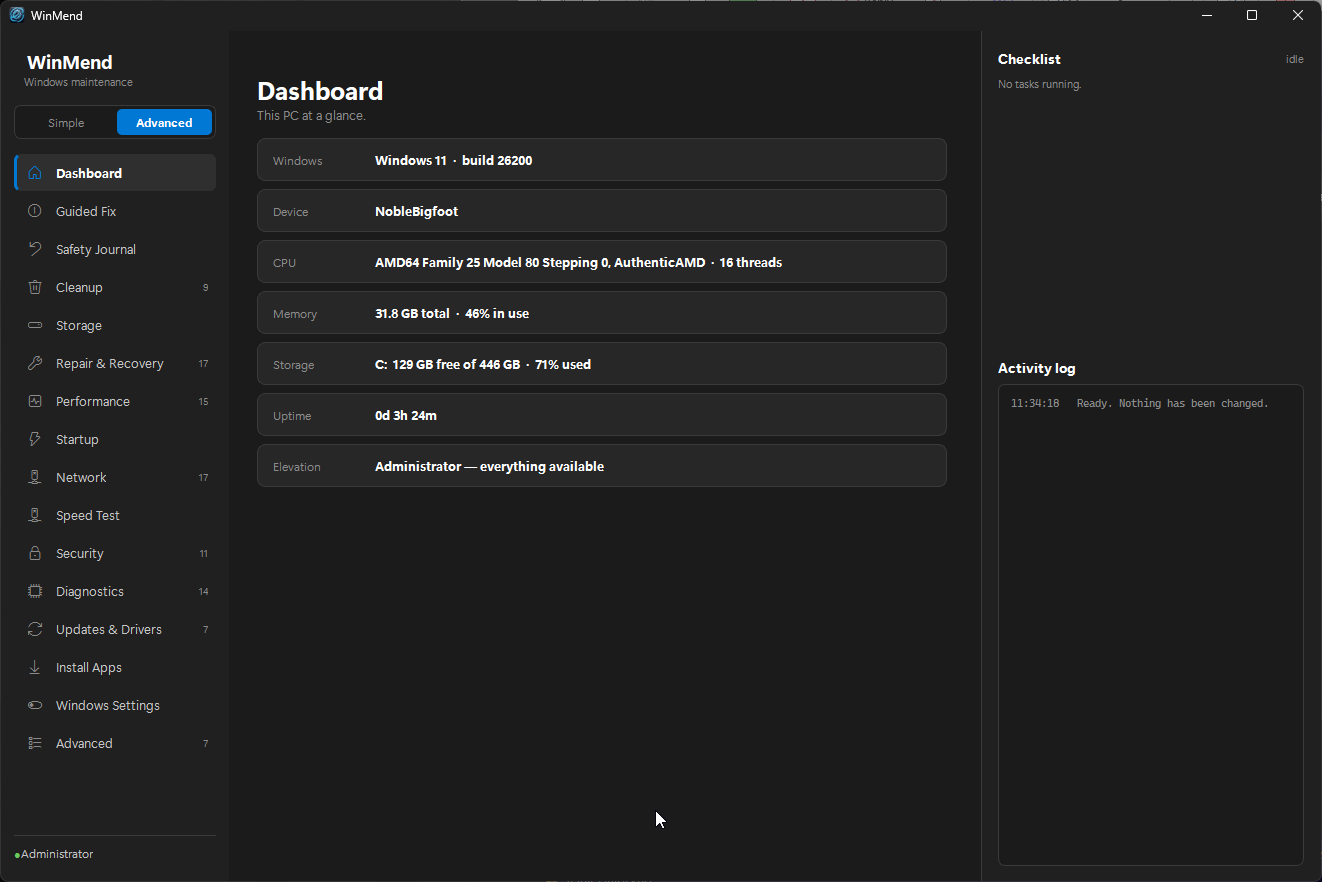
Opens on this PC at a glance: CPU, RAM, motherboard, OS build and install date, every drive with its free space, network adapters, and whether WinMend is currently running elevated.
Cleanup — 9 tools
Clears junk without touching anything that matters. System-wide temp cleaning covers Windows Temp, User Temp, and Prefetch; Deep Disk Cleanup runs Windows' own utility in four measured stages — temporary files and caches, Delivery Optimization and old driver packages, Windows Update Cleanup, previous-installation leftovers — then empties the Recycle Bin. Progress is measured from free space, CPU and disk activity, so a slow stage is reported and a provably stuck one is skipped rather than sitting at 95%; it never touches your Downloads folder, File History versions, or the files Reset this PC needs. Browser cache clearing covers Edge, Chrome, and Firefox. DISM component store cleanup removes superseded Windows Update backups.
Two tools reclaim space most people forget about: removing the Windows.old folder left behind by a feature update, often 20-30 GB, and deleting old restore points while keeping your newest rollback intact. Both tell you what you give up before they run. Icon, thumbnail, and font cache rebuilds fix the cosmetic corruption that has no obvious cure.
Storage Analyzer
A full page rather than a bolted-on window. A hierarchical folder tree sits on the left, loading children on demand so a large drive stays responsive. The right pane toggles between the selected folder's contents — name, size, file and folder counts, percentage of parent, modified date — and a flat, biggest-first list of every file in the scan, because a folder tree alone cannot answer "where did my space go".
Rows are colour-coded by size: blue for Windows core files, red above 1 GB, orange above 100 MB. Underneath, 13 safety rules identify what must never be casually deleted — critical OS paths, documents and media, cloud-synced folders, high-risk extensions like .pst, .vhd and .kdbx, game libraries, source trees, recent downloads, and the Search index. Those rules drive the hint column, the confirmation dialog, and a hard refusal to delete a critical path no matter what you click.
A duplicate finder groups candidates by size, then by a partial hash, then by a full cryptographic hash, so same-size lookalikes are never misreported as duplicates. It lists what it finds and deliberately refuses to delete anything automatically.
Repair & Recovery — 17 tools
The tools you reach for when Windows itself is broken. SFC and DISM system file repair, scheduled Check Disk, Windows Update component reset by renaming SoftwareDistribution and catroot2, print spooler queue clearing, search index rebuild, and service dependency repair.
Beyond the classics: resetting a single misbehaving Store app such as Mail or Photos, restoring a broken Start menu and taskbar layout, clearing file association UserChoice keys, and restarting the audio services — the standard fix for "no sound after an update". A System Restore browser lists every checkpoint on the machine and rolls back to the one you pick, and a Reset Windows Defaults task reverts WinMend's own performance, gaming, and RAM Optimization tweaks in one step.
Repair File Explorer is for the Explorer that opens slowly or sits at "Working on it...". Its usual cause is Quick Access: a jump list that has corrupted, or filled with folders on servers, NAS boxes and mapped drives that no longer answer, each of which Explorer waits on before it draws anything. The task reads that list directly (not through Explorer, which is what hangs), rebuilds it, and pins your folders back — all but the ones pointing somewhere that no longer answers, which it names. It clears Recent Items and Explorer's address-bar, search and recent-documents history, finds mapped drives and network locations whose server does not answer and asks before removing any, and lists third-party context-menu and icon-overlay extensions without touching them. Everything removed is copied to a backup folder first.
Repair Microsoft Office & Outlook is for Outlook or Office that will not open, crashes, keeps asking for a password, or says "Unlicensed Product". It measures first — the Click-to-Run service, Office processes stuck without a window, licence state, the Outlook profile and its data files against the size ceiling, add-ins, sign-in registry overrides, and two weeks of crash events with each crash traced to the add-in, display driver or Office file it landed in — then shows a checklist in which only the repairs the measurements point at are pre-ticked: end the stuck process, fix the service, turn off the crashing add-in, run Office's own Quick or Online Repair, reset the navigation pane, rebuild the offline cache, reset the sign-in and licence cache (exported to a backup first), or check for Office updates. Reversible steps write their undo to the log.
Safe Mode boot toggling, booting straight into UEFI or Advanced Startup, and a confirmed restart with a 60-second cancellable countdown round it out.
Performance — 15 tools
Page file sizing from installed RAM, with current-versus-recommended shown before it commits. Fast Startup disabling for clean shutdowns. SSD-safe drive optimisation that issues TRIM to solid state drives and will never defragment one. A power plan switcher that can unlock Ultimate Performance on demand.
RAM Optimizations trims background memory pressure in one step: it stops and disables SysMain, Windows Search, DiagTrack, and the Diagnostic Policy Service, turns off optional diagnostic data and Delivery Optimization's peer-to-peer downloads, and disables memory compression. Changes that need a restart to take effect don't interrupt the run — WinMend batches them into a single "Restart to finish" prompt (now, or in 60 seconds) after everything else completes, the same mechanism any future task can reuse rather than popping a dialog mid-run.
Gaming features can be turned off wholesale — Game Bar, DVR, Game Mode, background recording, Xbox monitoring — or turned on wholesale, including hardware-accelerated GPU scheduling, variable refresh rate, and per-executable GPU preferences for detected games.
Debloat removes 91 default bloatware apps silently, with no download and no tracking changes; Debloat Extreme extends that to optional, unsafe, and OEM software from HP, Lenovo, and Dell. Both are embedded locally — no remote script is fetched or executed.
Startup Manager
Enumerates every autostart entry from the Run keys (per-user, machine, and the 32-bit view) plus both Startup folders. Toggling an app writes the same Task Manager-compatible approval flags Windows uses, so nothing is ever deleted and anything disabled can be re-enabled here or in Task Manager.
The boot impact column shows only what Windows' own Diagnostics-Performance log actually recorded for that app. Where there is no measurement, it says so. Every toggle is journalled.
Network — 17 tools
Everything from a DNS flush and IP renewal up to a deep stack remediation covering Winsock, TCP/IP, firewall, ARP, and NBT. DNS switching offers eight public resolvers — Cloudflare, Google, Quad9, OpenDNS, AdGuard, and the malware- and adult-filtering variants — or hands DNS back to your router. DNS-over-HTTPS can be enabled on every active adapter.
Diagnostics include a ping bundle, a deep connectivity report, a listing of every bound TCP and UDP port joined to its owning process, a Wi-Fi channel analyzer for picking a less crowded channel, and Windows' own wireless report with connection history and disconnect reasons.
Repairs cover the hosts file, network adapters, the Bluetooth stack, and the system clock — a wrong clock silently breaks HTTPS, sign-ins, and updates, and almost nobody checks it. Exporting saved Wi-Fi passwords is available but gated behind typing a confirmation phrase, and the export is written in plain text to your Desktop for you to secure or delete.
Speed Test
Measured against Cloudflare's public endpoints, with nothing bundled and no licensed binary shipped. The quick test gives download, upload, ping, and jitter with a live gauge and a latency graph drawn as it runs.
The advanced test adds what a browser tab cannot see. Latency measured under load produces a bufferbloat grade on the A+ to F scale, with the spike visible on the graph, alongside a responsiveness figure and p50, p95, and p99 latency. Adapter detection reads your real link speed, radio type, signal, and PHY rate to tell you whether your Wi-Fi is the ceiling or your ISP is. First-hop latency times your own router separately from 1.1.1.1 and 8.8.8.8, so a bad local network is distinguishable from a bad connection. DNS timing and IPv6 availability are checked too.
Results are translated into plain verdicts — whether the connection is good for 4K, HD, video calls, gaming, uploads, and multiple devices — weighting latency and bufferbloat rather than raw megabits. Findings link straight to the tool that addresses them, and a self-contained HTML report comparing measured speed against your advertised plan can be exported as evidence for your ISP. History is trended over time.
A full advanced test on a gigabit link can move up to about 1 GB of data; the page warns before it starts. A speed test changes nothing on the PC, so it produces no journal entry.
Security — 11 tools
Defender full scans, the Microsoft Malicious Software Removal Tool, and a smart remediation mode that updates signatures, scans, inventories startup persistence, and saves a report.
The audit tools are the interesting ones. Scheduled task auditing flags non-Microsoft tasks running from %TEMP% or %APPDATA% or from unsigned executables — a common persistence vector. Firewall auditing flags inbound rules permitting unsigned binaries. A security posture report covers Defender, UAC, SmartScreen, BitLocker, firewall profiles, and how recent your last update is. Camera and microphone access auditing lists every app permitted to use them and when it last did. Local account auditing flags passwordless accounts, unexpected administrators, and an enabled built-in Administrator or Guest. All read-only.
Telemetry can be hard-disabled: DiagTrack, CompatTelRunner, the telemetry policy, advertising ID, and app-launch tracking. Sysinternals Autoruns and Process Explorer are available on demand.
Diagnostics — 14 tools
These only look. They change nothing.
Crash investigation runs from BlueScreenView minidump analysis through WinDbg — with a paste box that explains its output in plain English — to a one-click BSOD triage that gathers dumps, bugcheck events, and driver context into a single report.
Hardware testing covers SMART disk health with temperature, wear, power-on hours, and error counts; a battery report showing design versus full-charge capacity and wear percentage; a 60-second CPU stress test that samples load and clocks and then checks for new hardware error events; a RAM pattern check across up to 1 GB of free memory; GPU inventory with display-driver crash events and temperatures; and USB device listing with one-click safe eject.
Rounding it out: recent event log errors, Reliability Monitor, a scheduled memory diagnostic, a boot time analyzer showing which driver or service slowed recent boots, and a full HTML PC report. That report is thorough enough to include usernames, network configuration, and environment variables, so it is written locally and never transmitted — and worth reviewing before you share it with anyone.
Updates & Drivers — 7 tools
Windows Update cycles, OEM firmware updates, missing driver installation, a forensic fixer for stuck or looping update components, and a driver rollback centre that snapshots drivers and builds a guided rollback workbook by device class.
A winget panel sits at the top of the page listing every application with an update available, parsed directly from winget's own output. Updates run one at a time with live output, no timeouts, and a Cancel that stops the run. The whole batch is recorded as a single journal session.
Install Apps
A catalogue of 392 curated applications across nine categories — browsers, utilities, development, multimedia, communications, documents, games, Microsoft tools, and professional tools — searchable by name, category, description, or package ID.
WinMend marks what winget reports as already installed, so you do not reinstall what you have; because applications installed outside winget may not be detected, a blank row means "not detected" rather than "not installed". Tick any number across categories and they install one at a time with live output and a working Cancel.
Everything is fetched by winget from each publisher's own source. WinMend hosts nothing and bundles no installers. Every batch is journalled.
Windows Settings
Twenty-seven switches for the Windows behaviour that has no obvious setting: dark theme, file extensions, hidden files, the classic right-click menu, taskbar alignment and buttons, Start menu web results, mouse acceleration, Num Lock at startup, long path support, detailed blue screens, and more.
Every switch is read from the registry each time the page opens, so changes made in Settings or by another tool show up here too — it never displays what WinMend last wrote. Each has a defined on-state and off-state, so flipping it back restores exactly what was there before. Values WinMend did not create are never deleted, existing values keep their registry type, and bitfields keep the bits the switch is not about.
Switches that need administrator rights, an Explorer restart, a sign-out, or a reboot say so on the row, and Explorer is only ever restarted when you ask. Every flip is journalled. The registry paths and values come from Chris Titus's WinUtil, where they have been exercised on real machines, rather than being invented.
Advanced — 7 tools
Expert tools, clearly marked. Manual restore point creation, Windows activation and product key changes, optional Windows features through DISM (WSL, Hyper-V, Sandbox, Virtual Machine Platform, Containers, .NET Framework 3.5, legacy media, NFS client), restoring the legacy F8 boot menu, an AutoPilot hardware hash export for deployment, MSCONFIG, and the Chris Titus Windows Utility — which downloads to a local temp file, computes a checksum, and prompts before running locally.
The Interface
WinMend is a native Windows application: a sidebar of 16 pages rather than one scrolling wall of checkboxes. Every task is a card with its own Run button, a plain-English description, an estimated runtime, and a badge if it needs administrator rights or a reboot. A collapsible queue panel is always visible, showing what is running, what is waiting, and what has finished, with live output for the active task.
Simple mode presents 25 plain-English actions — "Free up disk space", "Fix my internet", "Check my drive's health". Advanced mode exposes all 96 tools under their real names with full descriptions. A search bar matches a plain-English problem against every tool and ranks the best candidates with the reason for each match, so typing "blue screen" or "100% disk" goes straight to the right place.
Light and dark themes follow your Windows personalisation setting automatically, and typography is Segoe UI Variable, the Windows 11 system font.
Privacy
WinMend has no analytics, no telemetry, no crash reporting, and no phone-home mechanism. Nothing is ever sent to the developer or to any third party.
Network activity happens only when you ask for it: a network diagnostic, a Windows update, an application install, a speed test, or an external-tool download you initiated. Guided Fix additionally performs a few ordinary name lookups, a short reachability test against a public address, and an internet time query — all of them measurements of your own connection. One of the lookups deliberately asks for a name that cannot exist, because a reply to it is how a hijacked resolver or a captive portal is detected. Guided Fix transmits no journal, report, or system data.
The Safety Journal, speed-test history, preferences, and any reports you generate are local files on your own machine, and deleting them affects nothing but your history. The journal stores the problem description you type, so it is worth avoiding passwords or product keys in that box.
Safety
Commands are sanitised against injection and path traversal. Destructive or irreversible actions require explicit confirmation, and the most sensitive of them — exporting saved Wi-Fi passwords in plain text — requires typing a confirmation phrase. Registry, startup, and network changes are recorded so they can be reversed. Tasks requiring elevation say so on their card, and read-only tools are labelled read-only.
WinMend does many of the same low-level things malware does: registry edits, mass file deletion, PowerShell execution, and privilege elevation. Some antivirus engines flag it heuristically as a result. This is a documented false positive, and the project publishes both the mitigations already applied and the steps to resolve a detection.
Requirements
64-bit Windows 10 version 1903 or later, or Windows 11. Roughly 256 MB of RAM and 50 MB of disk space. Administrator privileges are required for full functionality; the standalone executable prompts for elevation via UAC automatically. No Python installation or additional dependencies are needed.
Open Source
WinMend is open source under the MIT license. Every operation the tool performs is visible in the source — no obfuscated commands, no encoded payloads, no beaconing. If you or your security team want to audit it before running it, the full source is in the repository.