BMO For Windows
It is recommended that you verify the SHA-256 checksum below matches the hash shared by the sender before executing this file.
File verification
VERIFIED- File
- BMO For Windows.exe
- Version
- 1.4.2
- Size
- 143.12 MB (150,074,784 bytes)
- Uploaded
- 2026-07-06 18:46 UTC
aebd4e0be674e242bf439647aa5a3675d85afb9425a3b99e0fdaa7c4e1d3f05c
https://app-repo.onlycyber.net/download/9f78f0cc-fdd9-47cd-b754-1c9776d1f503/1.4.2/get
sha256sum -c
Pictures
6

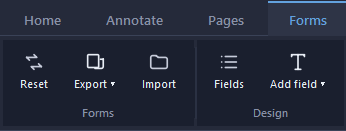


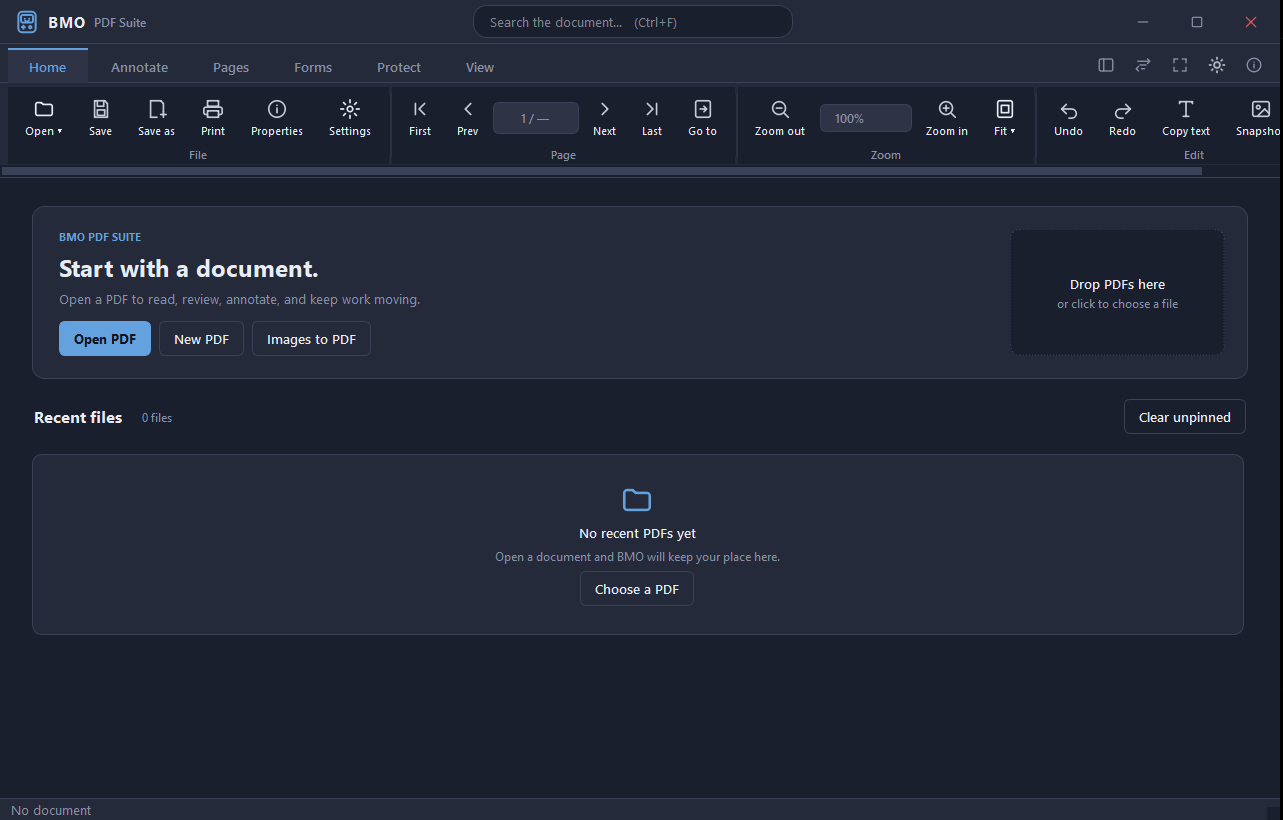
About this app
BMO PDF Suite is a fast, lightweight PDF viewer and editor built for Windows. Designed with a clean, modern interface and both light and dark themes, BMO gives you everything you need to read, mark up, and manage PDF documents, all in one place.
View & Navigate — Open multiple PDFs in tabs, zoom to fit the page or width, jump to any page instantly, and search across the full document with highlighted results. A thumbnail panel and outline sidebar keep long documents easy to navigate.
Annotate & Mark Up — Highlight text, add sticky notes, sketch freehand with the pen tool, insert shapes, and drop professional-looking stamps. Every annotation stays fully editable until you're ready to save.
Edit & Organize — Merge multiple files into one, split out individual pages, drag thumbnails to reorder, rotate and crop pages, and apply watermarks, headers and footers, or sequential Bates numbers for legal documents.
Security & Compliance — Encrypt PDFs with a password, permanently redact sensitive text so it can never be recovered, add a digital signature, and sanitize hidden metadata before sharing externally. An audit log tracks every change made to a document.
Built for professionals who deal with PDFs daily, in legal, finance, healthcare, and document-heavy workflows. BMO stays out of your way and focuses on doing the job well.
BMO update notes
1.4.2 — October 22, 2026
Edit text directly on your PDF
- Choose Edit Text, then click a paragraph to highlight it or drag across the text you want to replace. Type your changes directly on the page.
- Fine-tune the font, size, line spacing and text-box position using the panel on the right.
- See changes as you type. Use Done to finish, Cancel or Esc to restore the paragraph, or Undo to reverse a completed edit.
- If text does not fit or cannot be applied, the right panel explains the issue so you can adjust it.
See more detail in tool previews
- Zoom in and out, enter a zoom percentage, or choose Fit page and Fit width in Detect Fields, image editing, before-and-after reviews and PDF comparison.
- Hold Ctrl and scroll to zoom, then drag the preview to move around the page.
- Detect Fields opens with a larger preview and an adjustable divider. Switching between detected fields keeps your zoom level and brings the selected field into view.
- Resize or maximize tool windows for more working room.
Reliability and security fixes
- An unexpected error in a command no longer closes BMO. Your documents stay open, a message explains what happened, and BMO saves a recovery checkpoint. Details are written to
%AppData%\BMO\logs\crash.log. - Applying redactions now also removes the redacted text from places you can't see on the page: document properties and metadata, bookmarks, comments on any page, form values, alternate text and other stored text. Attachments that contain it are removed. A summary shows what was changed.
- BMO now honors the restrictions set by a document's permissions (owner) password. Printing, copying and editing are turned off when the document doesn't allow them, and changing or removing the document's security requires that password. To lift the restrictions for this session without changing the file, choose Protect ▸ Unlock restrictions… and enter the permissions password.
- Long OCR and batch jobs now run to completion instead of stopping after 15 minutes. Cancel still stops them at any time.
- After you confirm the warning and save an edited copy of a signed PDF, you can keep saving that copy. Reopened copies whose signatures are all broken work the same way.
- Text boxes, stamps, link labels, measurement labels, inserted images and placed signatures now appear upright on rotated pages, and measurement labels stay within the page.
Version history
Every version keeps its own file and checksum, so an older link always serves the build it was published with.